
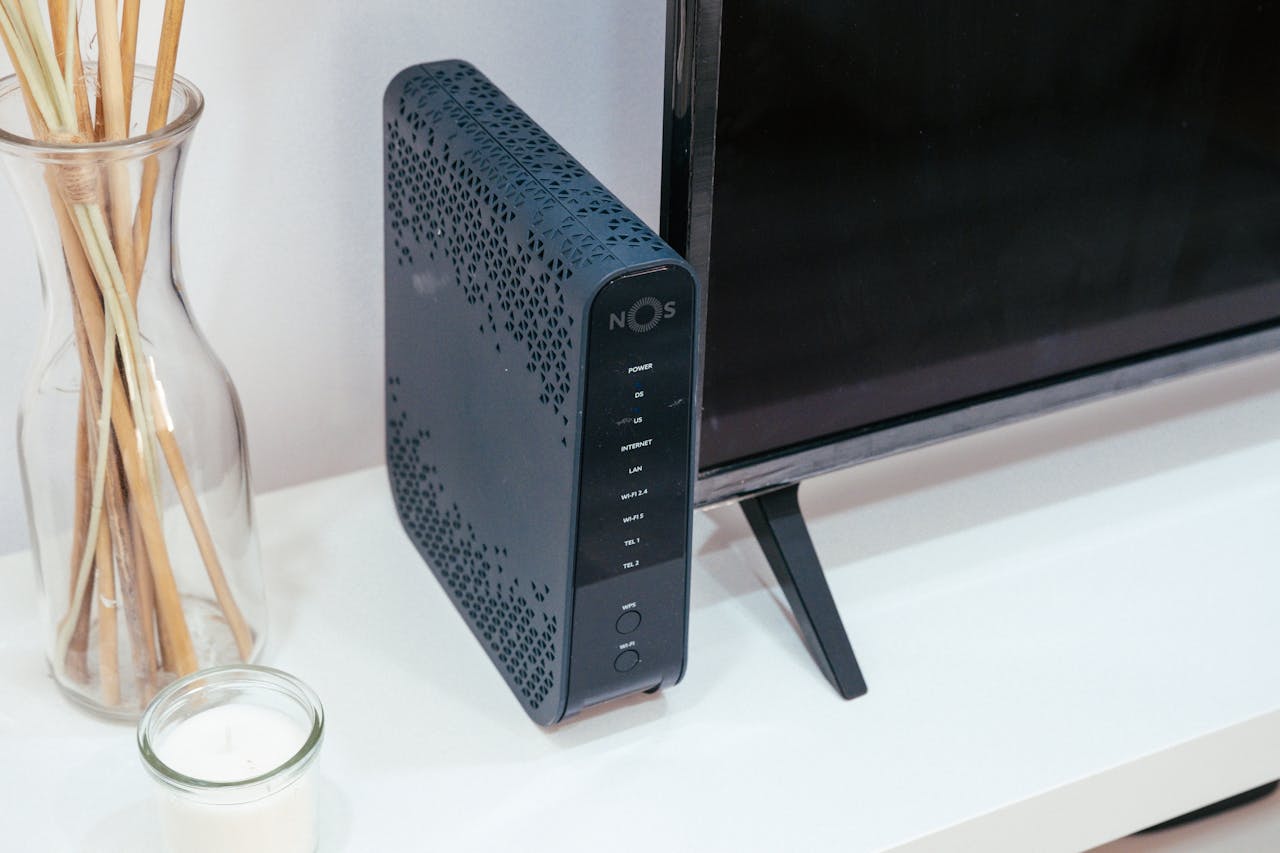
Let’s be honest, we’ve all been there. You’re in the middle of something important-watching a video, gaming, or trying to work-and suddenly, your Wi-Fi decides to act up. It’s the worst, right ? Well, don’t panic ! In this guide, we’re going to walk through 5 simple steps that can fix most Wi-Fi issues at home. No need for expensive technicians or complicated jargon. Let’s dive in.
Step 1: Check Your Internet Service
 Before you start fiddling with cables and routers, make sure the issue isn’t from your Internet Service Provider (ISP). Sometimes, the problem lies beyond your control. Check if there’s an outage in your area or if your monthly bill has been paid (we’ve all missed a payment at least once, right ?).
How to check : Head over to your ISP’s website or call their customer service. They’ll usually have a status page to let you know if there are any ongoing outages. If everything seems fine on their end, it’s time to move on to the next step.
Step 2: Restart Your Router and Modem
Yes, I know-it sounds simple. But, honestly, restarting your router and modem can solve a ton of issues. This is like giving your devices a quick reset, clearing up any temporary glitches that might be slowing down your connection.
Here’s how to do it :
- Unplug your router and modem from the power source.
- Wait for about 30 seconds. This gives the devices time to reset.
- Plug them back in and wait for the lights to stabilize (it can take a minute or two).
Once everything’s back online, check if your connection has improved. Simple, but often effective !
Step 3: Move Your Router to a Better Spot
Okay, this one might surprise you, but the location of your router plays a huge role in the quality of your Wi-Fi signal. If your router is stuck in a corner of your house, buried under a pile of books, or in a room with thick walls, that signal has a tough time reaching every corner of your home.
Pro tip : Place your router in a central, open space-preferably higher up, like on a shelf. This can help your signal travel more efficiently. And if you’re in a large house, maybe consider getting a Wi-Fi extender to boost the signal to further rooms.
Step 4: Check for Interference
This one is a bit tricky, but stay with me. Many devices in your home (microwaves, baby monitors, cordless phones, etc.) use the same frequencies as your Wi-Fi, which can cause interference. This can make your connection slow or spotty, even if everything else seems fine.
What you can do : Try to keep your router away from other electronic devices that might cause interference. If your router supports it, switch between the 2.4 GHz and 5 GHz bands. The 5 GHz band is less crowded and might give you a faster, more stable connection.
Step 5: Update Your Router’s Firmware
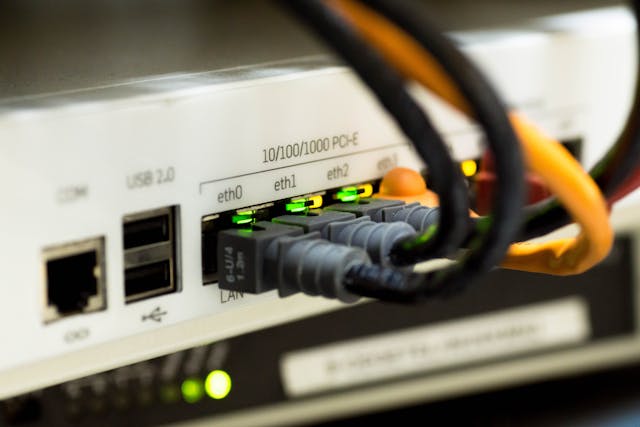 Believe it or not, your router’s firmware might be outdated, and that can lead to connectivity problems. Manufacturers often release updates to fix bugs or improve performance, so it’s worth checking if yours needs an update.
How to update : Log into your router’s admin panel (usually by typing its IP address into a browser), and check the settings for firmware updates. It’s usually a quick process, and it might solve your problem. If you’re not sure how to access the admin panel, just Google the model of your router and “how to update firmware.”
Wrapping It Up
And there you have it-5 simple steps to fix your Wi-Fi connection at home. I know, it’s not always as easy as it sounds, but trust me, most Wi-Fi issues can be solved with a little patience and these quick fixes. If none of this works, it might be time to call your ISP or consider upgrading your router to a more powerful one.
Have you tried any of these steps before ? What worked for you ? Let me know in the comments-I’m always curious to hear your thoughts. And remember, sometimes it’s the little things that make all the difference in your connection !